Working Slack GPT workflow demo in days for UK teams
Slack GPT workflows let teams add a Generate AI response step to Workflow Builder, so AI can summarise, triage and draft content without leaving Slack. Non-developers build these using plain-language prompts grounded in Slack channels, canvases, lists or files. Developers extend the same system with custom functions that surface as workflow steps, unlocking deeper integration with external tools and data.
TL;DR:
- Grounding the AI prompt to specific channels, files, or lists significantly reduces hallucinated details and improves the accuracy of summaries and drafts.
- Most useful templates, like weekly summaries or support triage, rely on simple triggers and prompts, which allow quick deployment and reliable results.
- Custom AI workflow steps require defining clear inputs and outputs, with deployment options either on Slack’s infrastructure via Deno SDK or self-hosted with Bolt, but they involve more development overhead.
- Implementing strict governance measures such as scope limitation, access restrictions, data logging, and escalation thresholds is essential for safe and effective AI automation.
- Starting with simple, well-scoped workflows and grounding sources before expanding into complex integrations yields higher reliability and easier governance.
Table of Contents
- What is the Generate AI response step in Slack?
- How to build a no-code Slack GPT workflow step by step
- Developer path: custom AI steps with Bolt or the Deno Slack SDK
- How do you ground and govern AI steps safely in Slack?
- What are practical Slack GPT workflow examples and templates?
- When should you build in-house versus hire a specialist?
- Editorial take: what the practical guide gets right (and where teams overreach)
- Get help building Slack GPT workflows that stick
- Sources
- FAQ
What is the Generate AI response step in Slack?
The Generate AI response step is a built-in block inside Workflow Builder. You find it in the step library alongside message and form steps, then drop it into any workflow you're assembling. Once added, it asks for a prompt and, optionally, one or more knowledge sources to ground its output.
You can even skip manual assembly entirely: Slack now lets you describe a workflow in natural language and it generates a starting structure you then refine and publish.
Grounding matters more than the prompt itself in most cases. Point the step at a specific channel, a canvas, a list, or an uploaded file, and the AI response draws on that content rather than guessing. Slack's own documentation on the Generate AI response step confirms it can summarise, translate and draft on your behalf when given the right sources.
Triggers decide when the step fires. The usual candidates for no-code AI steps are:
- A scheduled trigger, for recurring digests like a weekly summary.
- A form submission, for structured requests such as a support ticket or leave request.
- An emoji reaction, for turning a flagged message into an action.
- A webhook, for pulling in events from an external system.
Preview mode lets you test the prompt against real data before anyone else sees the output, which catches vague phrasing before it reaches a live channel.
Pro Tip: Write your first prompt as if briefing a new team member who has never seen the channel before. Vague prompts produce vague summaries; specific ones ("list decisions made, owner names, and next deadlines") produce usable ones.
How to build a no-code Slack GPT workflow step by step
A weekly project summary is one of the simplest, highest-value automations to build, and it teaches you every mechanic you'll reuse elsewhere.
- Pick the trigger. A scheduled trigger firing every Friday at 4pm works well for a weekly digest; a form trigger works better if you want someone to select which project to summarise.
- Structure the inputs. If using a form, add fields for project name and date range so the AI step has clean variables to reference, rather than relying on free text.
- Add the Generate AI response step. Write a prompt such as: "Summarise the key updates, blockers, and decisions from #project channel this week, in three short paragraphs." Attach the relevant channel as a knowledge source.
- Add branching logic. Use a conditional step to route the output. Long summaries might post to a canvas; short ones might post directly into a channel message.
- Preview before publishing. Run the workflow in preview mode with a real date range and check the output reads naturally, not just accurately.
- Publish and monitor. Once live, check the first few runs manually. AI outputs can drift in tone or length as underlying channel activity changes week to week.
Pro Tip: Keep a "prompt changelog" as a pinned note in the workflow's canvas. When output quality shifts, you'll want a record of exactly which prompt version produced which result.
This same pattern, trigger, grounded prompt, branching, preview, applies almost unchanged to translation workflows, onboarding digests, or meeting-notes drafts. Only the prompt and the attached source change.
Developer path: custom AI steps with Bolt or the Deno Slack SDK
No-code steps cover most business automations, but developers need more control for multi-system integrations, custom logic, or calls to external APIs Workflow Builder doesn't support natively. That's where custom workflow steps come in.
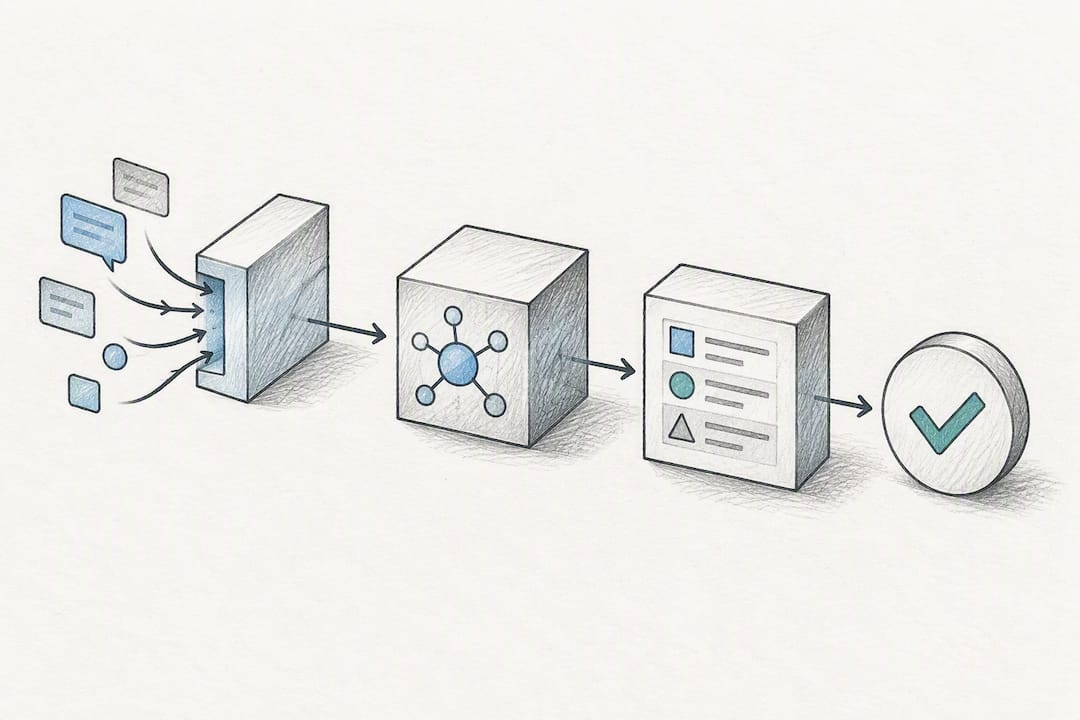
The high-level flow is consistent across tooling:
- Create or configure a Slack app and define a function in the app manifest, including its inputs and outputs.
- Implement the function handler, the code that actually runs when the step executes.
- Deploy the app so the function becomes visible as a selectable step inside Workflow Builder.
- Test the step inside a real workflow before rolling it out more broadly.
Slack officially supports two approaches, and the choice affects distribution. The Deno Slack SDK hosts functions on Slack's own infrastructure, which simplifies deployment but ties you to Slack's runtime. Bolt, by contrast, is self-hosted: you run the handler on your own infrastructure (a server, a serverless function, a container), giving you more control over dependencies and external network access, at the cost of managing that infrastructure yourself.
On implementation, every custom step must define clear inputs and outputs in the manifest and finish by calling either functions.completeSuccess or functions.completeError, the handler contract that tells Workflow Builder the step has finished and what to do next. A common pattern, illustrated in Slack's own Bolt code assistant tutorial, reads the last N messages from a channel using conversations.history, parses that context, sends it to an LLM, and returns a summary as the step's output.
Testing happens in three stages: locally against mock inputs, then in a staging workspace with real channel data, then org-wide. That last stage carries a real constraint: apps must be configured for organisation-wide installation before a custom step becomes visible across every workspace in your org, and public distribution of custom workflow steps is restricted by design.
How do you ground and govern AI steps safely in Slack?
Grounding is what separates a useful AI step from a plausible-sounding guess. Slack's Generate AI response step can pull from channels, canvases, lists and files, and anchoring a prompt to one of these sources sharply reduces hallucinated detail compared with an unguided prompt.
Grounding alone isn't governance, though. Slack recommends testing every prompt in preview mode before publishing, and gives admins controls to restrict who can build with AI steps and which data those steps can touch. Treat these as a starting checklist rather than optional extras:
- Restrict AI step creation to a defined list of workflow builders, not the entire workspace.
- Scope knowledge sources tightly; don't attach an entire workspace's channels when one channel will do.
- Document data flows and retention for any workflow touching customer or employee data, which matters for UK GDPR accountability.
- Log outputs somewhere reviewable, so a bad summary or a wrongly routed ticket can be traced back to its trigger and prompt.
- Set an escalation threshold, for example routing anything flagged "urgent" by the AI step to a human before it posts publicly.
Teams that scale support automation without losing oversight tend to combine AI agents for direct answers with workflows for routing and escalation, rather than letting one AI step handle everything end to end. That layered structure is what keeps automation fast without letting it run unchecked.
What are practical Slack GPT workflow examples and templates?
Most teams get the most value from four repeatable templates, each built on the same trigger and grounded prompt pattern.
- Weekly executive summary. Trigger: scheduled, every Monday morning. Prompt: "Summarise key decisions, risks and metrics from #leadership and #product-updates over the past seven days." Attach both channels as sources; post the result to a dedicated canvas rather than a busy channel.
- Support triage. Trigger: form submission from a customer-facing intake form with fields for issue type, urgency and product area. Prompt the AI step to classify the ticket and draft a first response, then route by category, a billing issue to #support-billing, a bug report to #eng-triage.
- Incident response drafting. Trigger: webhook from your monitoring tool. The AI step pulls recent messages from the relevant on-call channel using conversation history, drafts an initial status update, and posts it while a conditional step escalates to a page or call if severity is marked high.
- Sales deal snapshot. Trigger: scheduled or on-demand. The prompt gathers recent CRM notes (via a connected integration) and activity from a deal-specific channel, then produces a short snapshot: stage, blockers, next action, owner.
Pro Tip: Start with the summary template before attempting triage or incident response. It has the lowest risk if the AI gets something wrong, and it teaches your team how grounding and prompt wording affect output quality before higher-stakes automations go live.
Organisations that begin with small, high-value automations like these, rather than jumping straight to complex escalation logic, tend to get more reliable results faster.
When should you build in-house versus hire a specialist?
Deciding whether to build a Slack GPT workflow internally or bring in outside help usually comes down to four factors: complexity, data sensitivity, speed to market, and governance overhead.
A weekly summary or a simple triage form is well within reach for most internal teams using the no-code step alone. Custom functions that touch customer data, connect to external APIs, or need org-wide distribution carry more risk, and more engineering time than most teams expect.
A consultancy works with UK businesses on exactly this boundary. Their rapid MVP service builds a working demo of a proposed workflow in days rather than weeks, useful when you need to prove value before committing engineering time. Another service covers the build-out of multi-step Slack automations, including custom functions where the no-code step isn't enough. A further offering handles the harder cases: connecting Slack workflows to CRMs, ticketing systems, or internal databases with proper governance built in from the start.
Editorial take: what the practical guide gets right (and where teams overreach)
The most common mistake teams make with Slack GPT workflows isn't technical, it's sequencing. They reach for custom functions and external API calls before they've proven a simple summary workflow actually earns its place in someone's daily routine. Conventional advice treats the no-code step and the developer path as a ladder you climb once you "outgrow" Workflow Builder. That framing undersells how much genuine value sits in the no-code layer alone, particularly for triage and drafting tasks nobody enjoys doing manually.
Where the guidance in this piece diverges from most write-ups is governance. Most tutorials treat admin permissions and knowledge-source scoping as an afterthought, bolted on after the workflow works. Set restrictions and grounding sources first, before the workflow reaches a live channel. Retrofitting governance onto a workflow people already depend on is far harder than building it in from the first prompt.
If you take one thing from this guide, prioritise grounding over prompt cleverness. A well-scoped source beats a beautifully worded instruction every time.
— Oded
Get help building Slack GPT workflows that stick
Real-studios is the practical alternative to trial-and-error prompt tinkering for UK teams building Slack GPT workflows. Rather than spending weeks reading developer documentation and testing manifest files yourself, you get a working demo in days, built by people who already understand Bolt, the Deno Slack SDK, and Slack's governance model.
The Automations & Workflow Design service covers everything from a first no-code summary workflow to custom functions that pull data from external systems. If your project needs deeper integration work, connecting Slack to a CRM or internal database, the AI Integrations & Enablement service handles that scope. For teams still validating an idea, a Rapid MVP proves the concept before you commit further budget.
Browse the full range of services and book a discovery call to scope your first automation.
Sources
FAQ
Can ChatGPT integrate with Slack?
Yes. Slack's own Generate AI response step brings GPT-style capability directly into Workflow Builder, and developers can also connect external GPT models through custom functions built with Bolt or the Deno Slack SDK.
Can I automate a Slack "out of office" workflow for everyday use?
Yes, using a scheduled or form-triggered workflow that posts a status update and routes messages accordingly. Pair it with a Generate AI response step to draft a friendly out-of-office reply automatically, grounded in a simple prompt rather than a hardcoded message.
How do I create workflows using AI in Slack?
Open Workflow Builder, describe what you want in plain language, and Slack generates a workflow skeleton you can refine, as Slack's own guidance explains. Alternatively, build manually by adding a trigger, then a Generate AI response step, then any message or branching steps you need, before testing in preview mode and publishing.
How much does Slack AI cost per month?
Workflow Builder's AI steps are a paid feature available on certain Slack tiers, so check Slack's current pricing page for exact plan availability. Real-studios doesn't publish Slack's own pricing, but can advise on which tier suits your workflow needs during a discovery call.
Do I need a developer to build a Slack GPT workflow?
No, for most common automations like summaries, translations and drafts, the no-code Generate AI response step is enough. You need a developer only when the workflow requires custom functions, external API calls, or org-wide distribution across multiple workspaces.